
One application, a flexible licensing model
Mikrofab Suite ships as a single application; the difference between "editions" does not come from separate installers but from the license. You can explore the software without any hardware, free and unlimited, in a simulation (mock) mode; when you are ready to take measurements on a real instrument, you simply activate your license. Below you will find the operating modes, the licensing flow, the system requirements and the installation.
Simulation (mock) mode
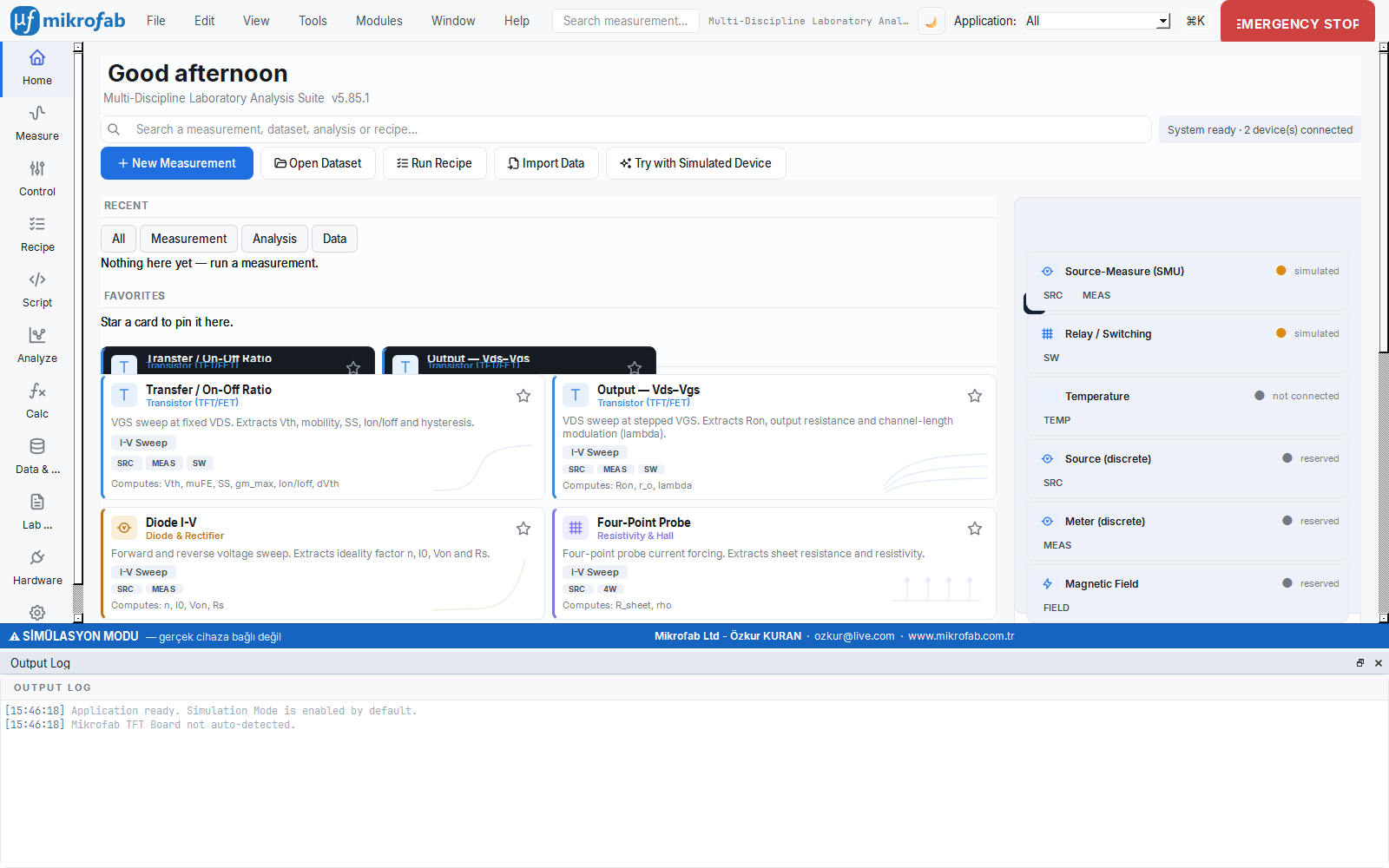
Enabled by default. It produces consistent measurement data, draws plots and saves files without needing a real instrument. Every measurement mode and the entire interface can be tried out, hardware-free and without limits.
Trial
You are granted a lifetime, limited number of free real measurements so you can connect to a real instrument and take your first measurements without a license. The analysis and calculation workspaces are always unlimited, independent of the license.
Licensed
The license unlocks the hardware: unlimited measurement on real instruments. Verification is performed offline; an internet connection is not required, and your license is not locked out when you are off the network.
Bundled installer
The Windows installer bundles Python and all dependencies; there is nothing else to install. Automatic updates check for new releases in the background.
The right fit for you
The same software is offered with different licensing forms to match your needs. Pricing is determined by the scale of your organization and your usage scenario; that is why, instead of a fixed price list, we prepare a tailored quote for you.
Trial
Download the software yourself and explore it without limits in simulation mode. To take your first measurements on a real instrument, start with a limited, lifetime free measurement allowance — no commitment.
Start with the manualLicensed
The full version for R&D, production and quality labs. Unlimited measurement on real instruments, multi-vendor SMU support, automation (recipe / headless) and traceable reporting. A single-machine, offline license.
Request a quoteAcademic / Site
Volume positioning for university labs and multi-user institutions. For teaching, the simulation mode runs free on every student's computer; flexible licensing suited to research and classroom use.
Request a quoteSimulation, trial and licensed — what's the difference?
See in a single table what is enabled in each mode. Simulation and analysis are always unlimited; the license only governs the right to measure on real instruments.
Start without waiting for us, without hardware
On first launch, simulation mode is enabled; the software runs without a real instrument, producing physically consistent synthetic data. With Try with a Simulated Instrument on the Home cockpit you can run the measurement flow in a single click.
- Simulation mode is unlimited — every measurement mode and the interface can be tried hardware-free.
- The analysis and calculation workspaces are always free, independent of the license; no instrument is needed to extract metrics from a file.
- When you move to a real instrument you use up your trial allowance, then switch to unlimited with a license.
| Mode / state | Real-instrument measurement | Simulation | Analysis / Calculation | Description |
|---|---|---|---|---|
| Simulation (mock) mode | — | Unlimited | Unlimited | Fully functional, hardware-free trial; enabled by default |
| Unlicensed trial | 5 measurements for life | Unlimited | Unlimited | Free starter allowance for real instruments |
| Licensed | Unlimited | Unlimited | Unlimited | Hardware unlocked (hardware feature) |
Offline activation and machine identity
License verification does not require the internet. Your key is signed on the server with a secret signing key; the software only verifies the signature with an embedded public key. The private key is never present on your computer.
Activation in three steps
The license is managed under Settings → Account & License. A stable machine identity, unique to each computer and unchanged across sessions and installations, is generated.
- 1. Copy the identity: Take the machine identity in the form
MF-XXXX-XXXX-XXXXwith "Copy" and send it to the vendor. - 2. Paste the key: Paste the license key tailored to you, in the form
PAYLOAD.SIGNATURE, into the box. - 3. Activate: If the key belongs to this machine and this application, has not expired and has a valid signature, the license is saved permanently.
If an administrator has defined the license on the server, the key approved for your machine can be fetched automatically with "Refresh License Status", without pasting it by hand. The software performs a revocation check in the background; if the server cannot be reached, an offline tolerance is applied.
License steps in the manual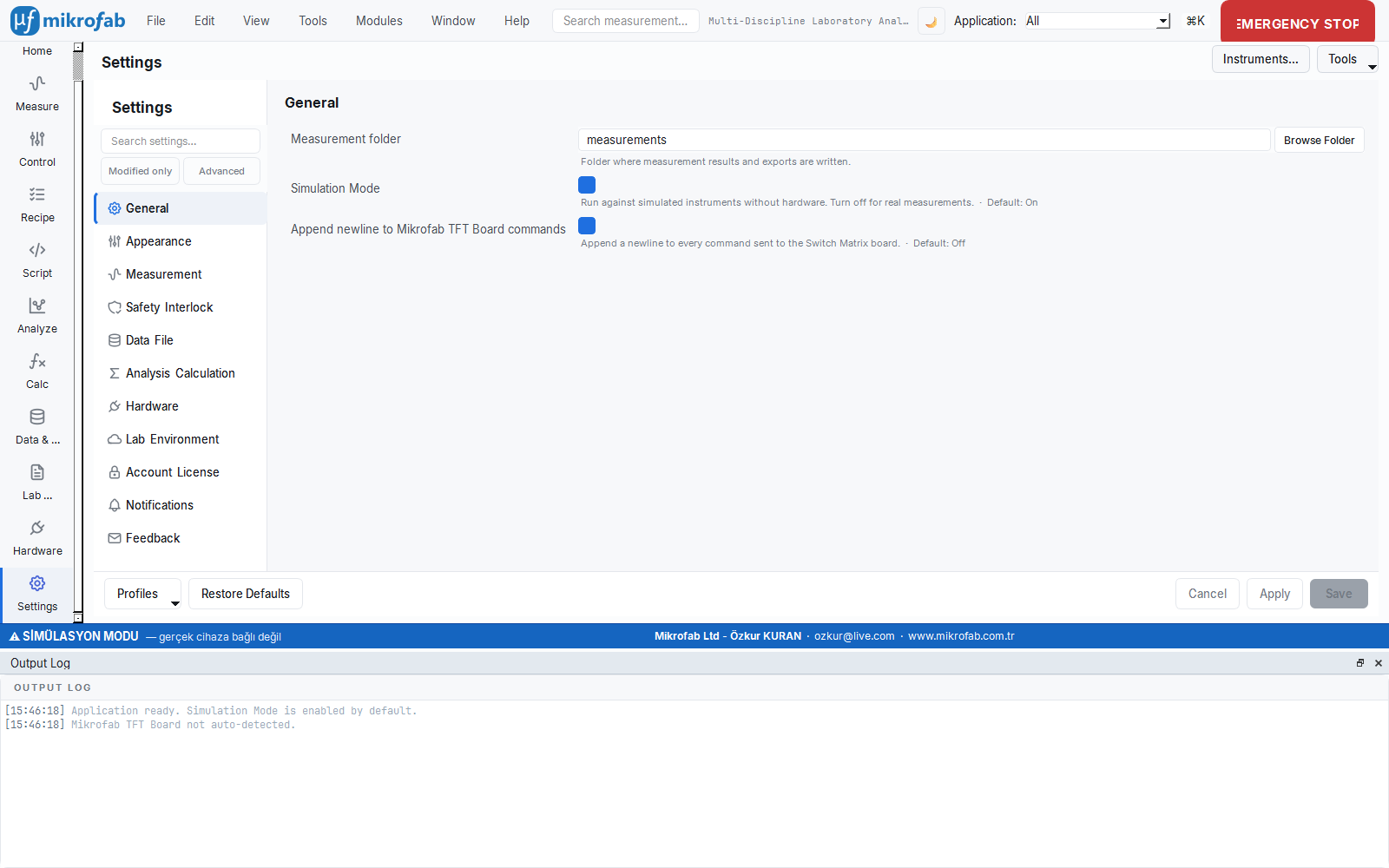
What do you need to run it?
Mikrofab Suite runs comfortably on a standard Windows workstation. For simulation and analysis, the operating system alone is enough; for measuring on real instruments, a VISA runtime is additionally required.
| Component | Requirement | Note |
|---|---|---|
| Operating system | Windows 10 / 11 (64-bit) | The installer is for Windows |
| Python | Not required (bundled installer) | 3.13 recommended for those running from source; 3.9+ supported |
| Memory and disk | 4 GB+ RAM; ~500 MB free disk space | The data folder grows as the number of measurements increases |
| VISA layer (real instrument only) | NI-VISA, Keysight IO Libraries or R&S VISA | Not required in simulation mode |
| Instrument connection | SMU: GPIB / USB (USBTMC) / LAN — Switch Matrix: COM (serial) | Multi-vendor SMU support |
| Optional components | Excel (.xlsx) output, offline license signature verification | If missing, the application still opens; the related feature is gracefully disabled |
VISA: for real instruments only
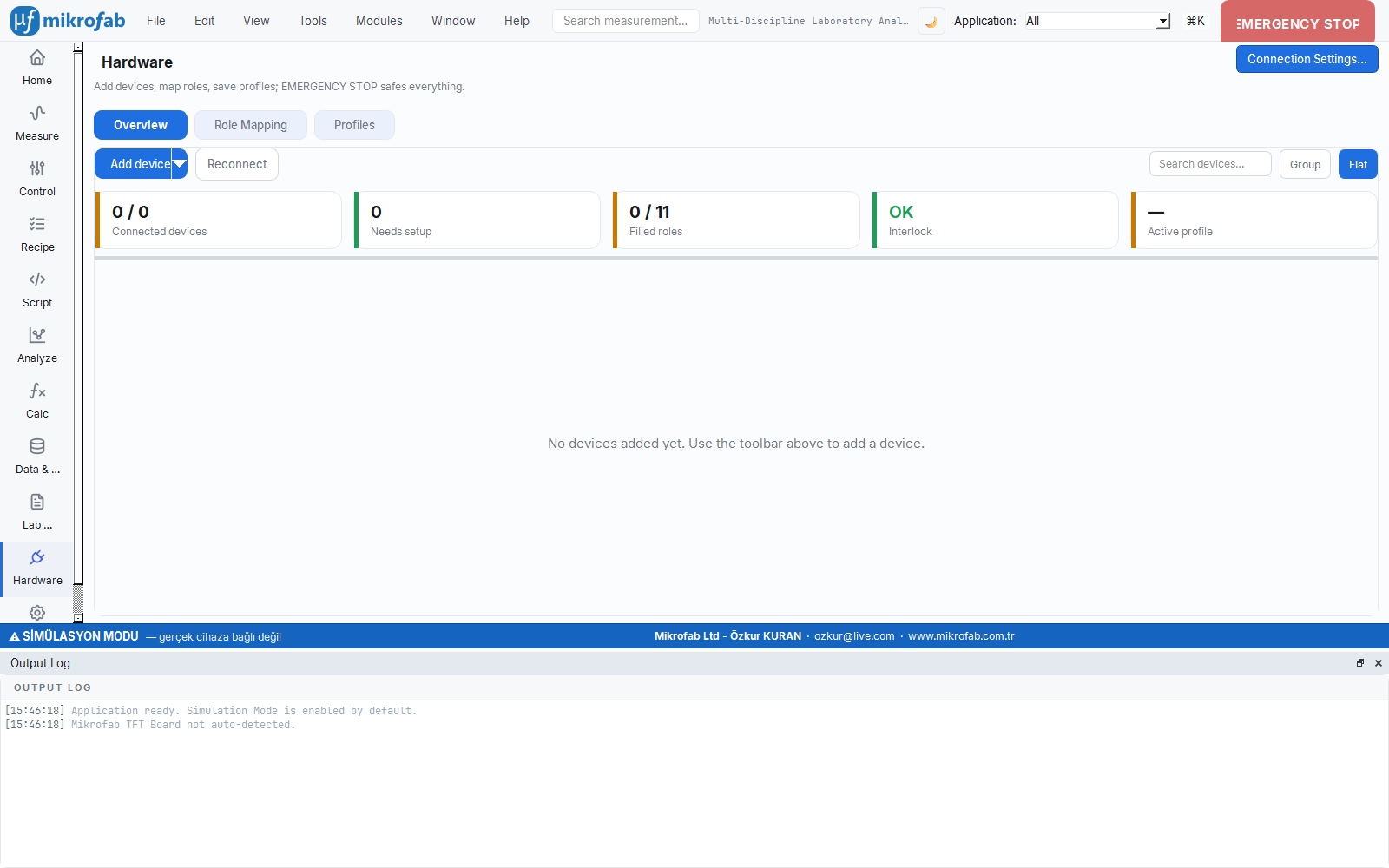
When you want to connect hardware, a VISA runtime appropriate for your instrument's vendor (NI-VISA, Keysight IO Libraries or R&S VISA) must be installed. Instruments are identified by VISA addresses; for example GPIB0::24::INSTR for GPIB and TCPIP0::192.168.1.10::inst0::INSTR for LAN.
- SMU connection is over GPIB, USB (USBTMC) or LAN; the Switch Matrix is managed over a serial (COM) port.
- You define the instrument once in the Instrument Registry and verify the connection with the
*IDN?test. - VISA is never needed in simulation mode; the same interface works hardware-free as well.
Download, double-click, get started
For end users, the easiest path is the ready-made installer. Because Python and all dependencies are bundled, there is nothing else to install; the software checks for new releases by itself.
Bundled installer
The NSIS-based installer includes both the Turkish and English license texts; it bundles the Python interpreter and all dependencies. Download and double-click, follow the wizard, and open it from the Start menu.
Splash screen
The bundled version shows a splash screen while heavy libraries are loading; it gives a "loading" impression and prevents unnecessary repeated clicks. The version you are running and the machine identity appear at the bottom-left.
Automatic updates
The software checks for a new release at startup and from the Help menu. If you confirm, the installer is downloaded; the download is verified for integrity with SHA-256 and resumes from where it left off if interrupted. All network operations run on a best-effort basis and never cause a crash.
pip install -r requirements.txt). On first launch, simulation mode is again enabled. For detailed steps, see the user manual.Let's determine the right edition for you together
Explore for free with simulation mode, and move to a real instrument when you are ready. Contact us for the license and price that suit your organization; let's schedule a live demo or prepare a quote tailored to your usage scenario.